Oracle Trading is a reliable TradingView indicator specifically designed to help traders of every market. It’s the result of over 12 years of experience and over a dozen indicators, all working together to successfully provide users precise trading opportunities, for swing trading strategies as well as long-term investments.
TradingView is a free multi-platform charting service and social network for traders and investors. It allows technical analysis of financial assets – including cryptocurrency – using different indicators and information in real time. TradingView also allows traders to share their analyses, charts, and discuss new strategies and trends, regardless of whether they are beginners or experts.
You can open a chart on TradingView by clicking on “Chart”, located at the top left of the website when you’re logged in:

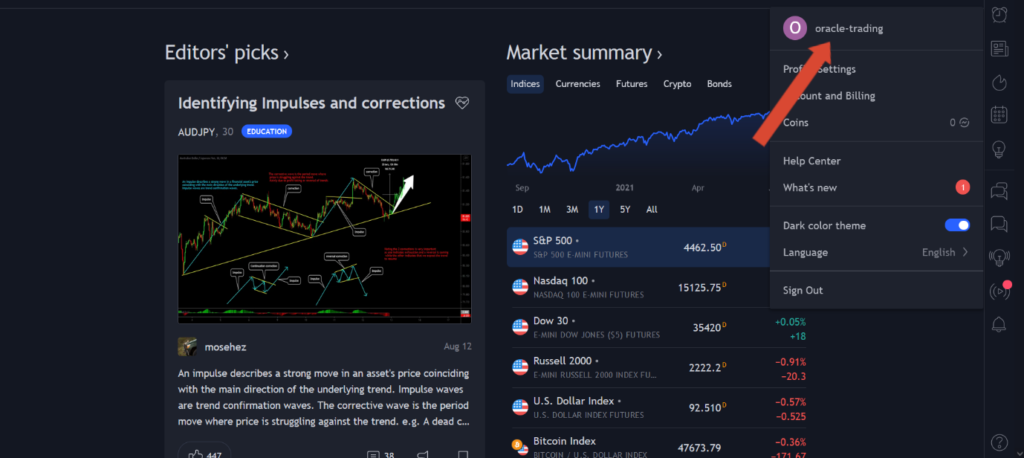
Step 1. Oracle Trading is hosted on tradingview.com. If you don’t have a tradingview.com account, please first create an account. If you did not provide the correct username on your order with us, make sure to send us your username through Email or Discord. You can find your username here:
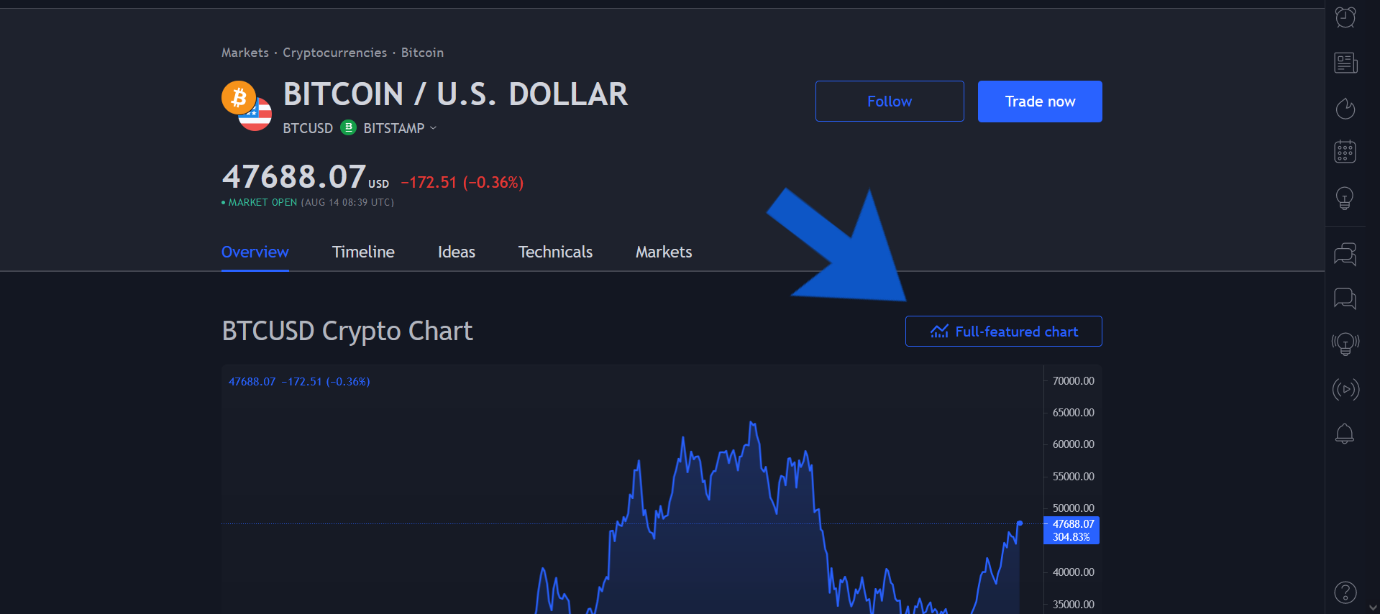
Step 2. Open any chart, then click on “Full Featured Chart”:
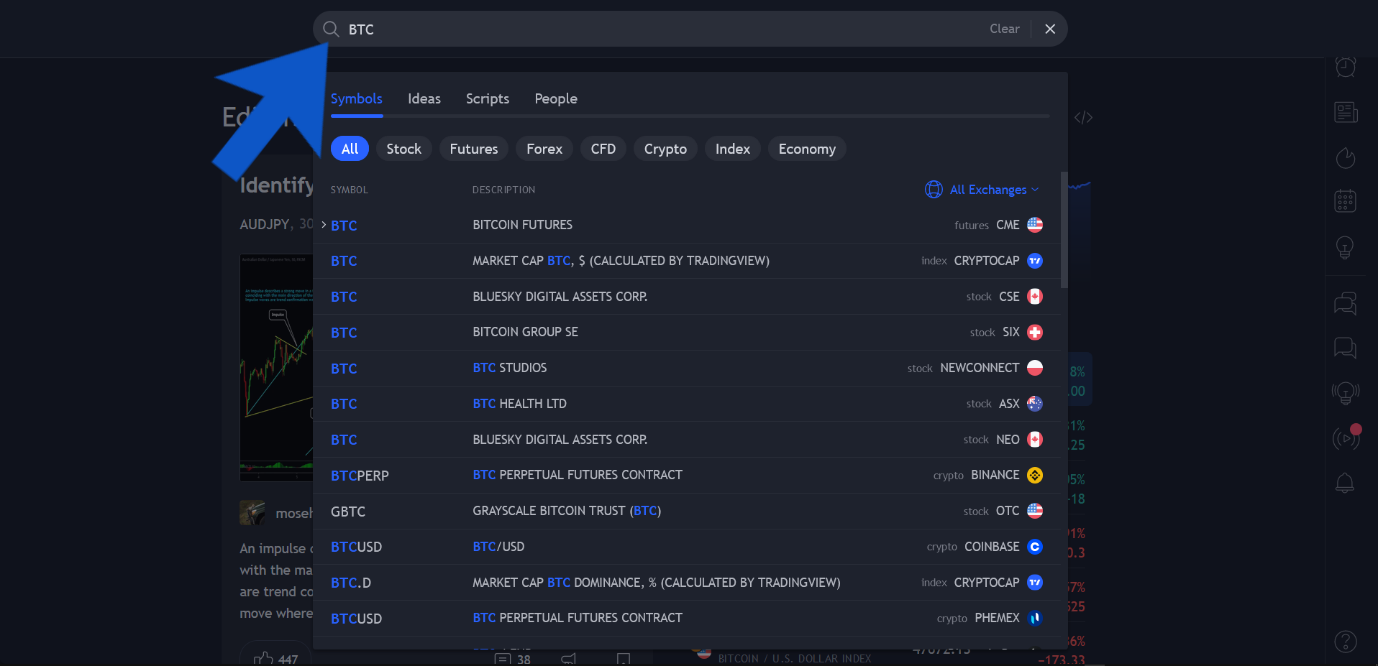
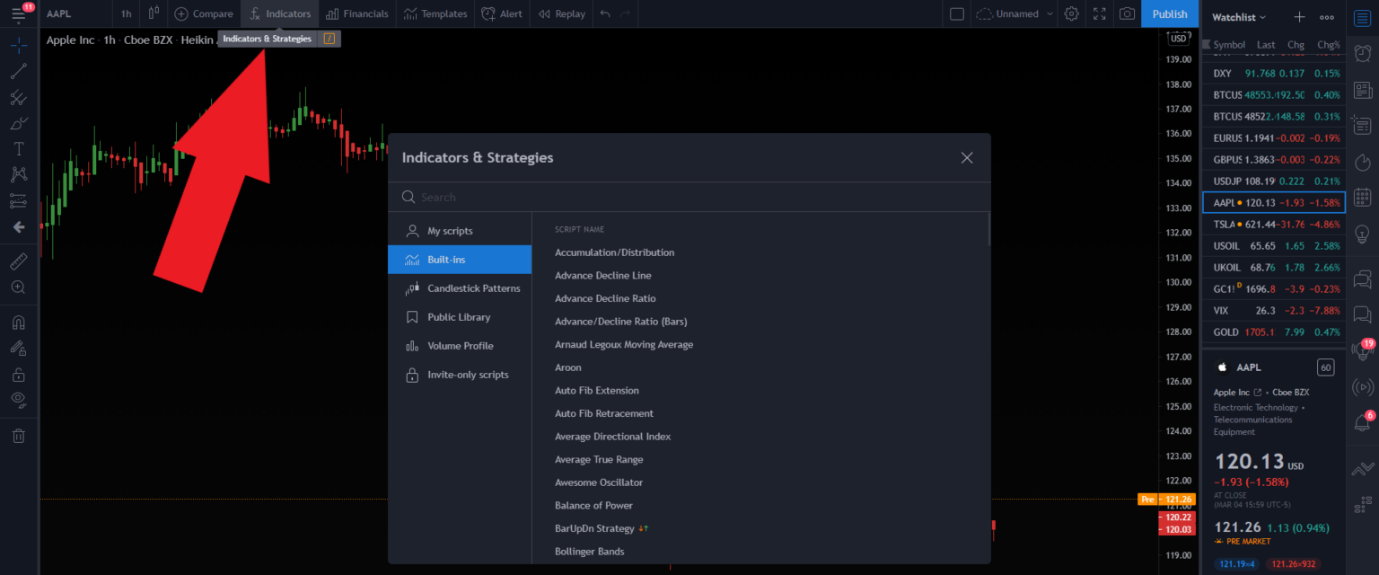
Step 3. Go to “Indicators & Strategies”. Click on “Invite only scripts”. Open Oracle Trading v.3.0 by clicking on it:
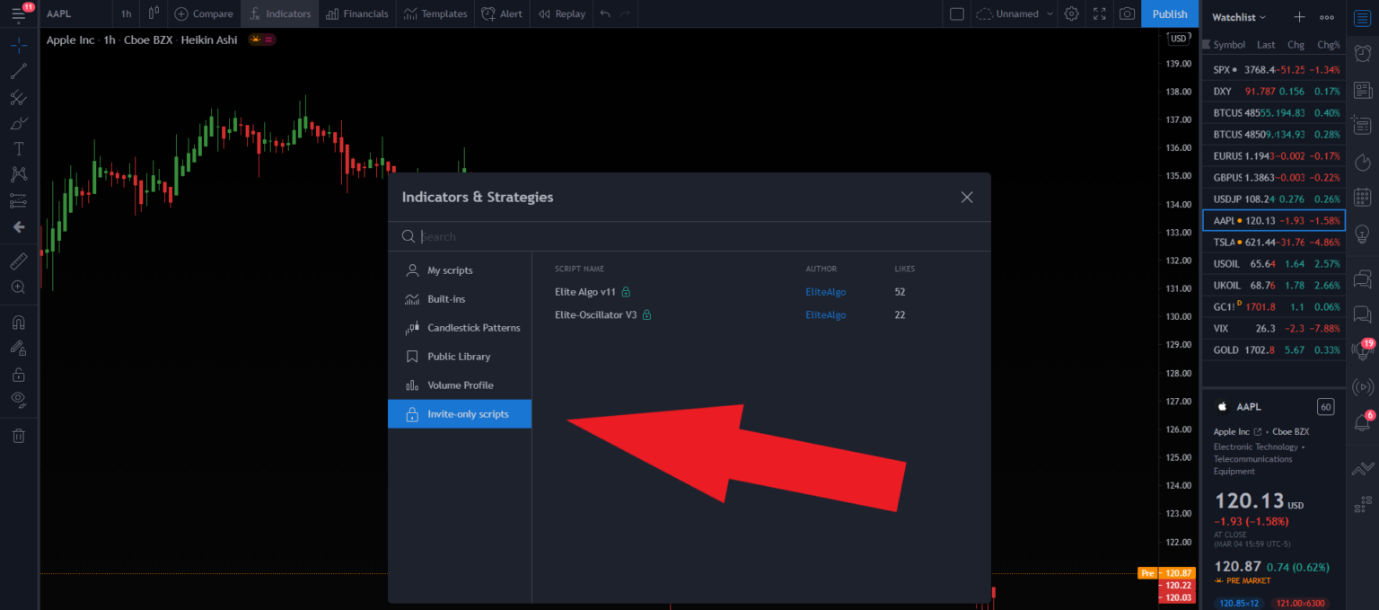
NOTE: When clicking Oracle Trading you MUST click the text “Oracle Trading v.x.x” just once and then close the dialog. The dialog will not close for you. Clicking the star adds it to your favourites, and clicking the blue “Oracle Trading” text link will take you to the indicator details page instead of adding it to the chart.
*** IMPORTANT: IF YOU DO NOT HAVE THE “INVITE ONLY SCRIPTS” OPTION, TRY REFRESHING YOUR BROWSER/APP. IF THIS DOES NOT MAKE THEM SHOW UP, PLEASE EMAIL: SUPPORT@ORACLE-TRADING.COM WITH YOUR TRADINGVIEW USERNAME & OUR TEAM WILL GRANT YOU ACCESS MANUALLY WITHIN A COUPLE OF HOURS. ***
In order to join our Discord server you will need a free Discord account. To create a Discord account please visit the Discord website (https://discord.com/) and download their software or use their browser based version.
To join our Discord community, click this invite link here: https://discord.com/
When you first join our server, you won’t be able to see anything besides our public channels. You can get help in the #setup-chat channel, see our announcements, example charts, get helpful information regarding Oracle Trading, and learn how to sign up.
Once you’re signed up via the website and have paid for a subscription, you’ll be granted access to our VIP Discord chats as well. In order to upgrade your Discord user role, please click on the “Get VIP Discord Role” button from the subscription confirmation email sent directly after purchasing.
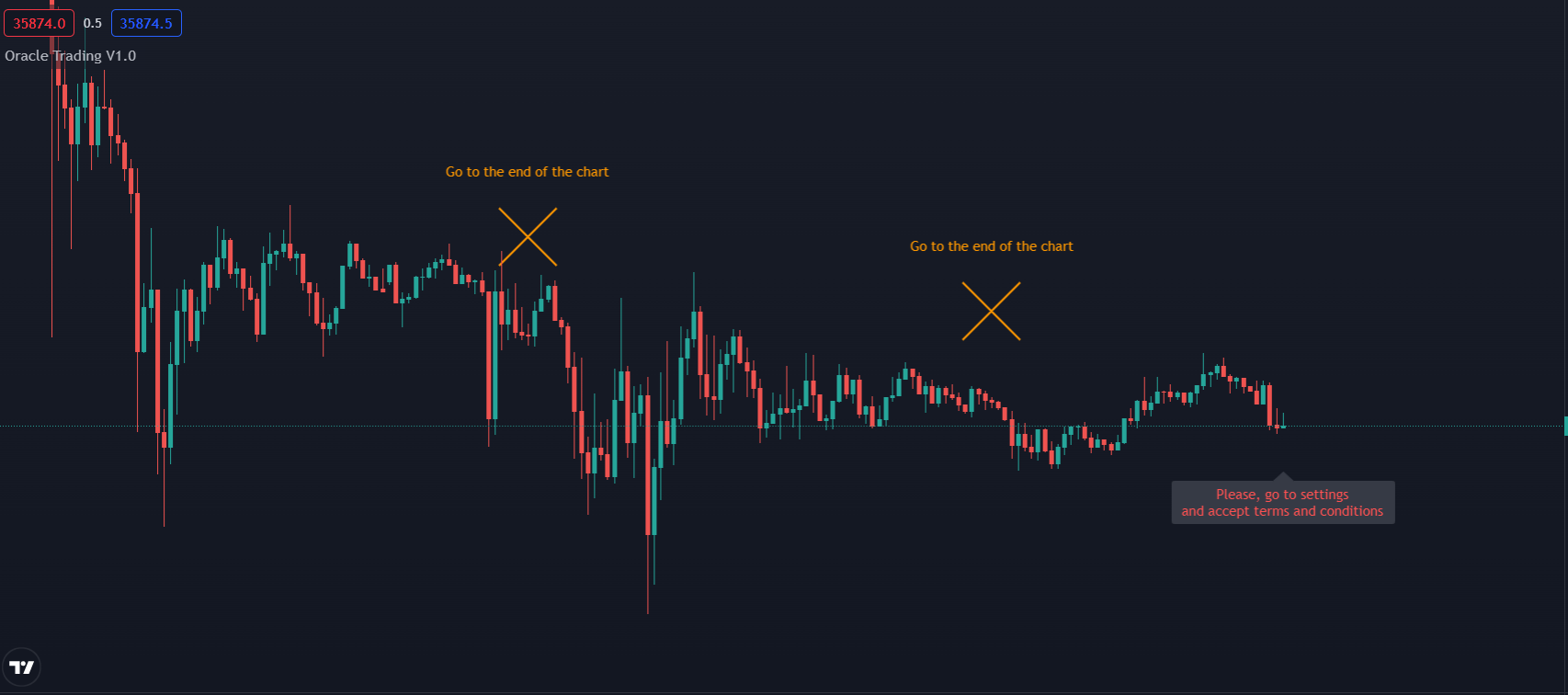
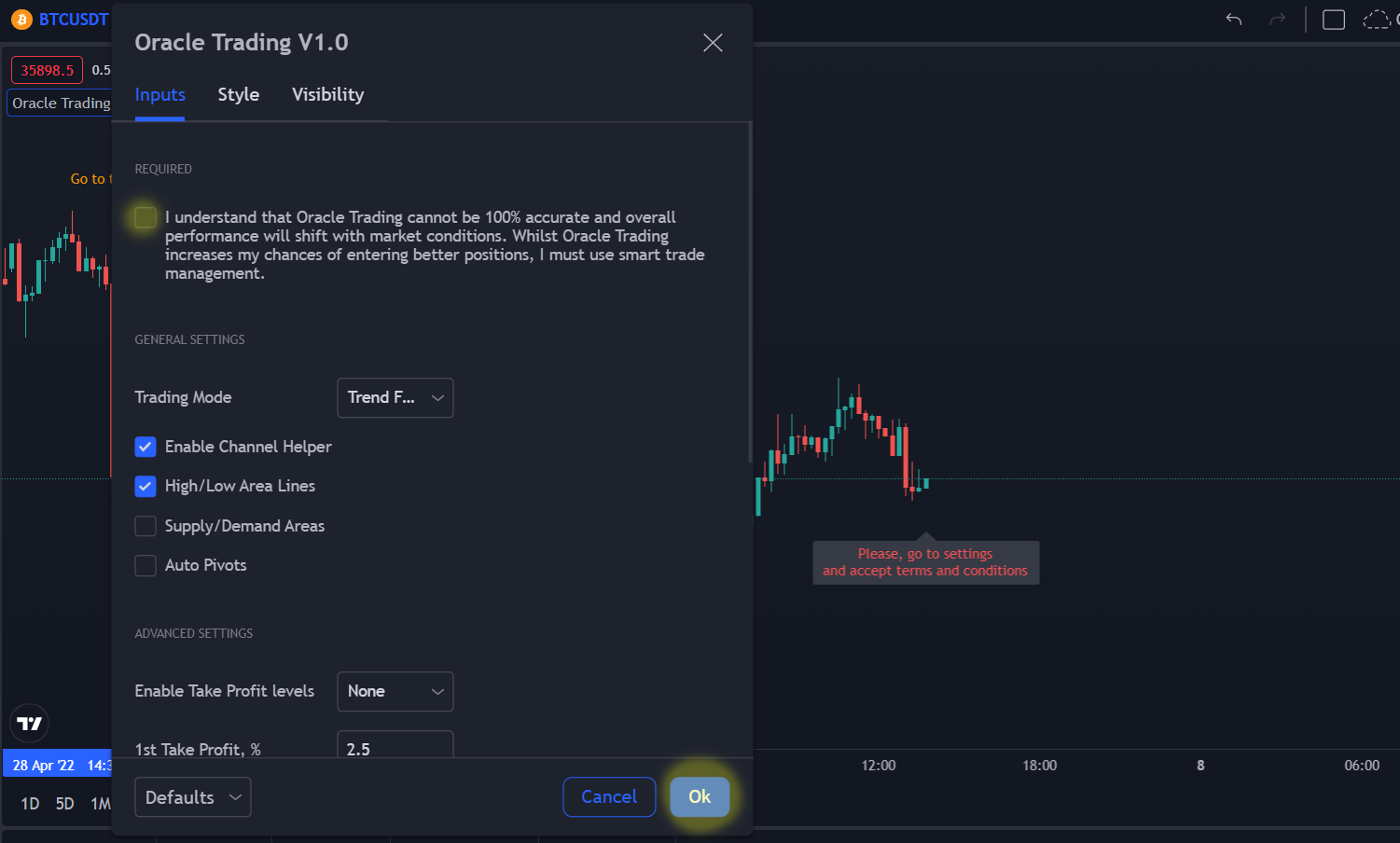
In order to have Oracle populate your chart with signals, you will need to click the gear icon of the indicator and tick the first box at the top. By agreeing to use Oracle Trading you understand the risks involved in trading. Our set of signals are meant to be used as trend confirmations and not direct entries and exists. Focusing on ease of use with the signal settings and using other features within our toolkit, together with a properly built trading plan and money risk management will result in the highest probability of success trades:
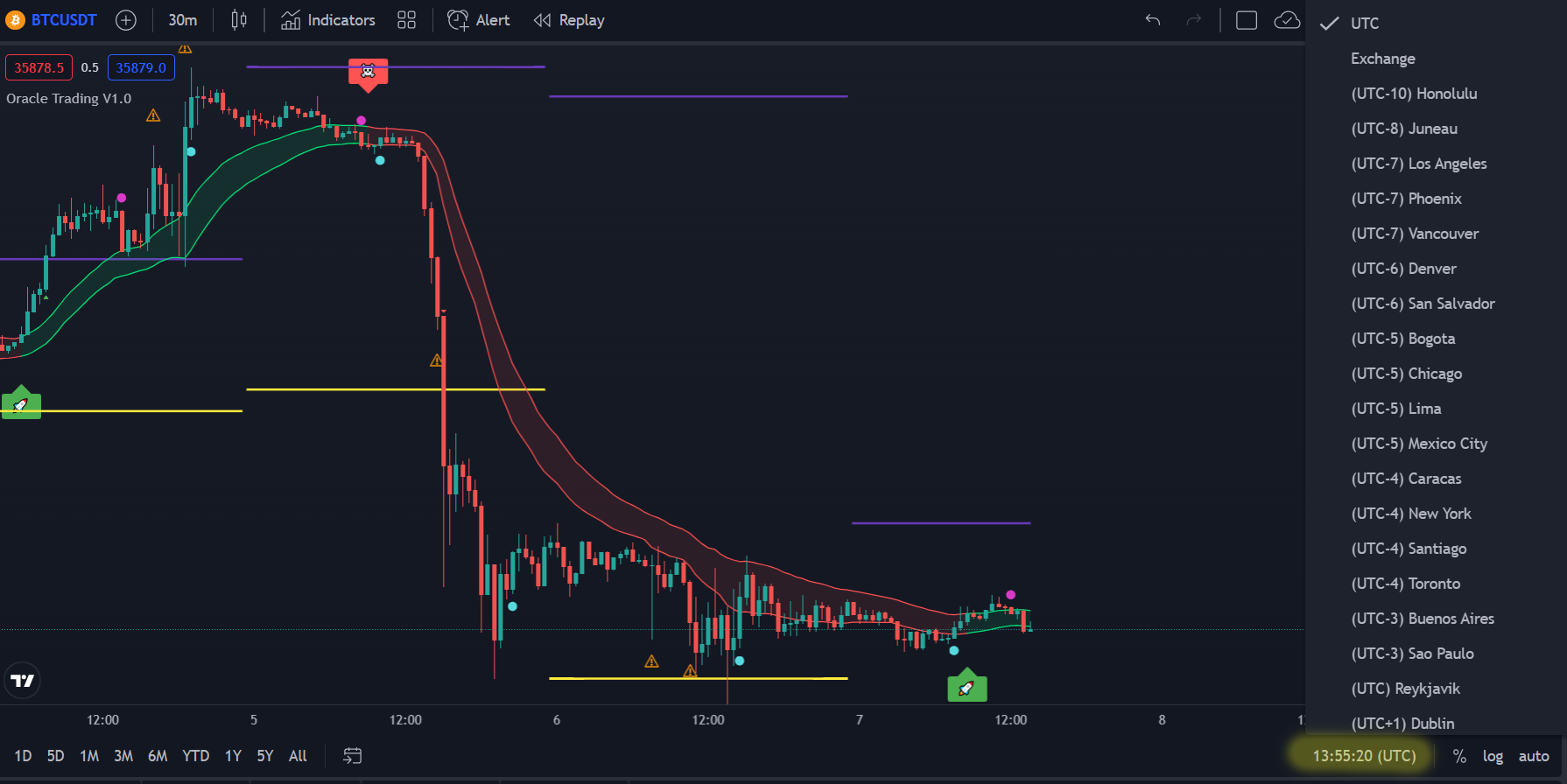
TradingView chart time zone data can be changed to suit a users needs. TradingView time zone can be set to UTC, exchange, or any of all the world’s time zones. There are two main methods for changing TradingView time zones… Either via the chart settings icon or using the chart clock:
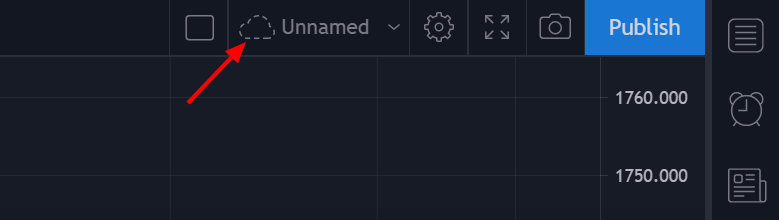
Savings your charts is essential to avoid losing your work. The other upside is you can access it from anywhere you have an internet connection (that includes Tradingview’s mobile app). All you need to do in order to save your work is click the cloud symbol at the top right of the chart:
Alerts are immediate notifications when the market meets your custom criteria. There are several ways to add alerts to a TradingView chart, please refer to this TradingView tutorial:
https://www.tradingview.com/support/solutions/43000595315-how-to-set-up-alerts/
To add Oracle Trading alerts you simply click the “Alert” button in one of ways described above. This will open up the alert display window, which should look as follows:
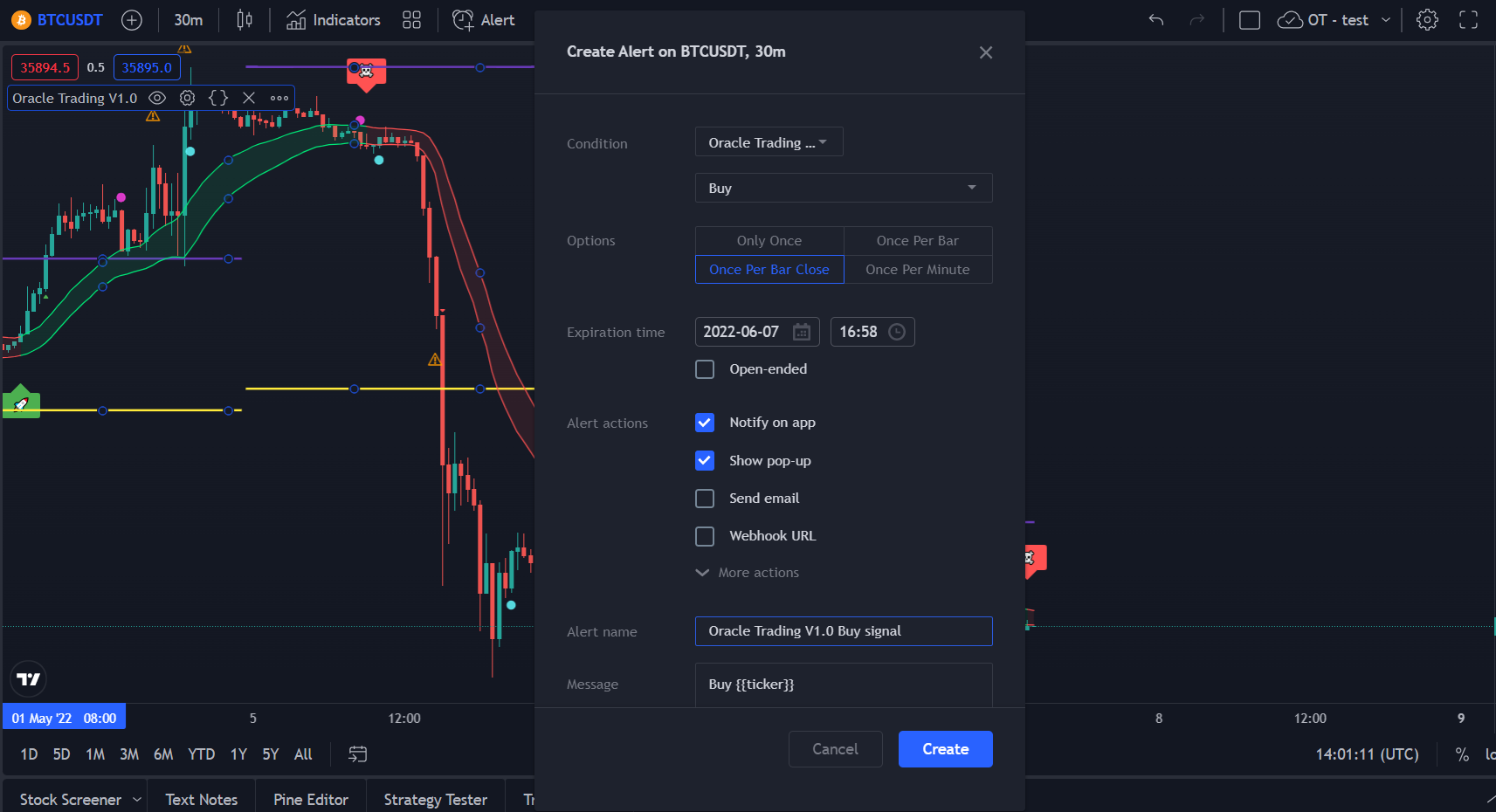
The “Condition” setting specifies our alert condition. The pull-down menu specifies what the alert should be based on and the type. Here you select the indicator for which you want to set the alert and then choose the alert signal. You can also choose different built-in alert conditions such as; “Crossing”, “Greater than”, etc.
The next part of the “Create Alert” window is the “Options” setting. You generally want to select “Once Per Bar Close” so the alert is triggered only once each time its condition is met at the bar’s close. Set the expiration time and alert actions and adjust the message (if you want one), then press “Create”.
Your alert has now been created for the selected chart/symbol, indictor and timeframe. You have to make an alert for each signal in part.
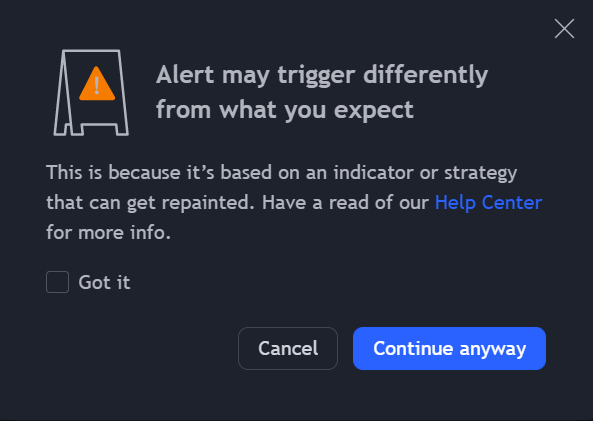
When you create an alert using certain indicators such as the Oracle Trading indicator, you might see a warning message, this is caused by internal Pine Script functions used in the script that may have a repainting behaviour when set in a specific way.
The alerts provided by the Oracle Trading indicator do not repaint and as such, you can click on “Continue anyway”:
Managing Alerts
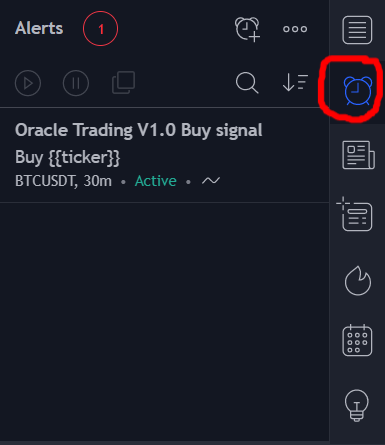
The alerts manager menu allows you to manage the alerts you currently have set. From there you can create, remove, pause, reactivate, clone, search, sort and edit your alerts.
To access the alert manager menu click on the alerts icon represented by an alarm symbol at the top left of the chart:
Users can access the Oracle Trading update following these steps below:
Step 1: Refresh your TradingView chart in your internet browser.
Step 2: Remove the indicator from your chart.
Step 3: Select the “Invite only scripts” component of your TradingView library and re-add the indicator to chart.
That’s it! The latest version of the Oracle Trading indicator should now appear for you.
In order to have Oracle Trading populate signals on your chart you must agree to the terms and conditions of the indicator. To do so, please click the gear icon of the indicator and tick the top required box on the “Inputs” tab.
For now leave the rest of the settings as default and click the “Ok” button to close the window. Now the indicator is ready and should show on your chart:
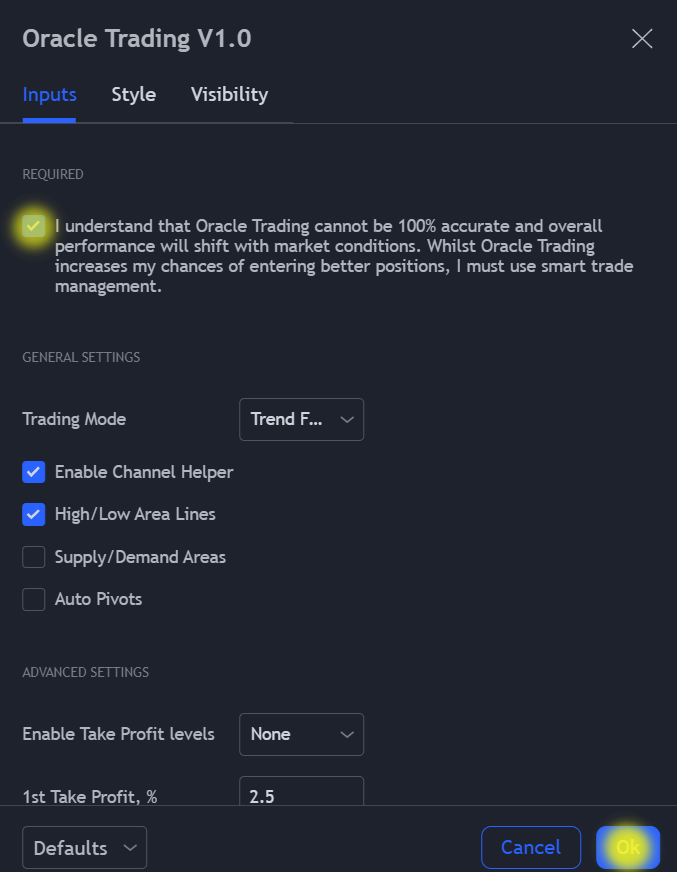
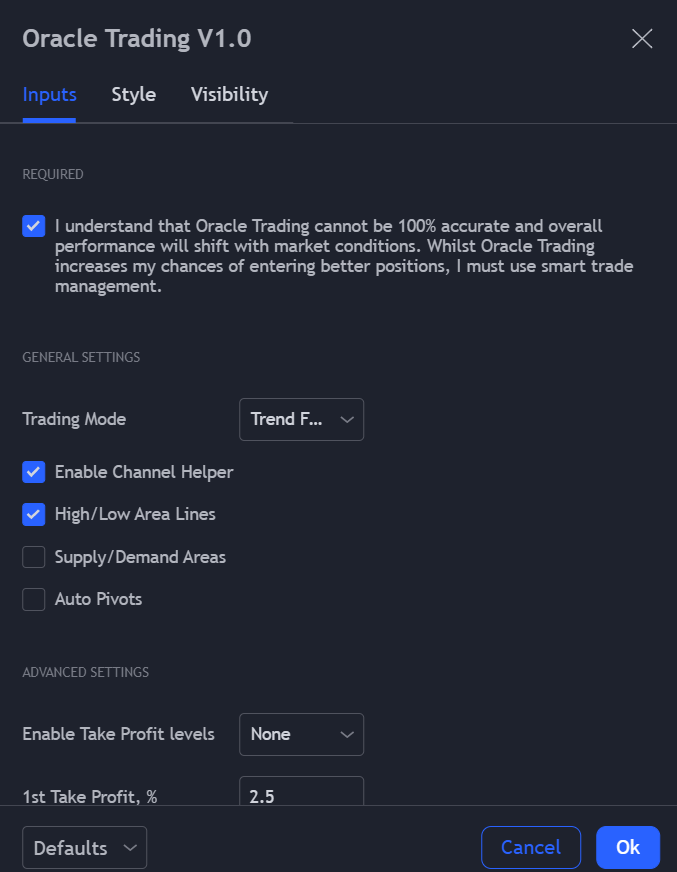
On the general settings section of the dialog you will notice there are 4 trading modes:
- Trend Follower 1
- Trend Follower 2
- Trend Follower 3
- Scalper (seasoned trader)
These settings alter the amount of confirmation Oracle will wait for before suggesting a signal.
Each trading mode is designed to fit specific user needs, and one method will not necessarily be more accurate than another. As such it’s best to try them all and see which one best fits your trading style and requirements.
Besides the 4 trading modes, Oracle also offers 3 indicator overlay options. These are as follows:
- Channel Helper
- High/Low Area Lines
- Supply/Demand Areas
- Auto Pivots
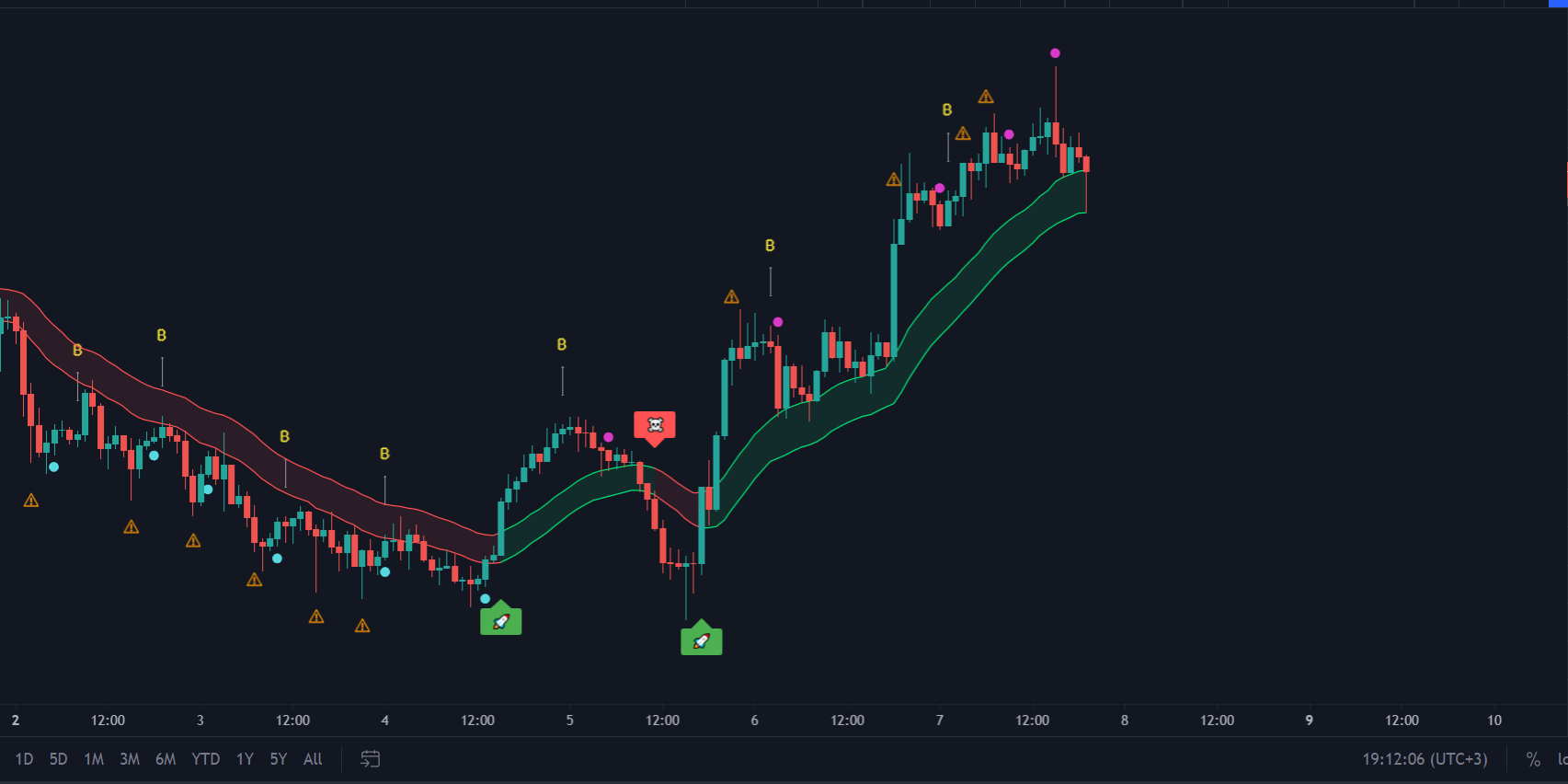
When enabled, the Channel Helper will display a channel-like indicator on your chart that will help identify the movement in a more consistent manner:
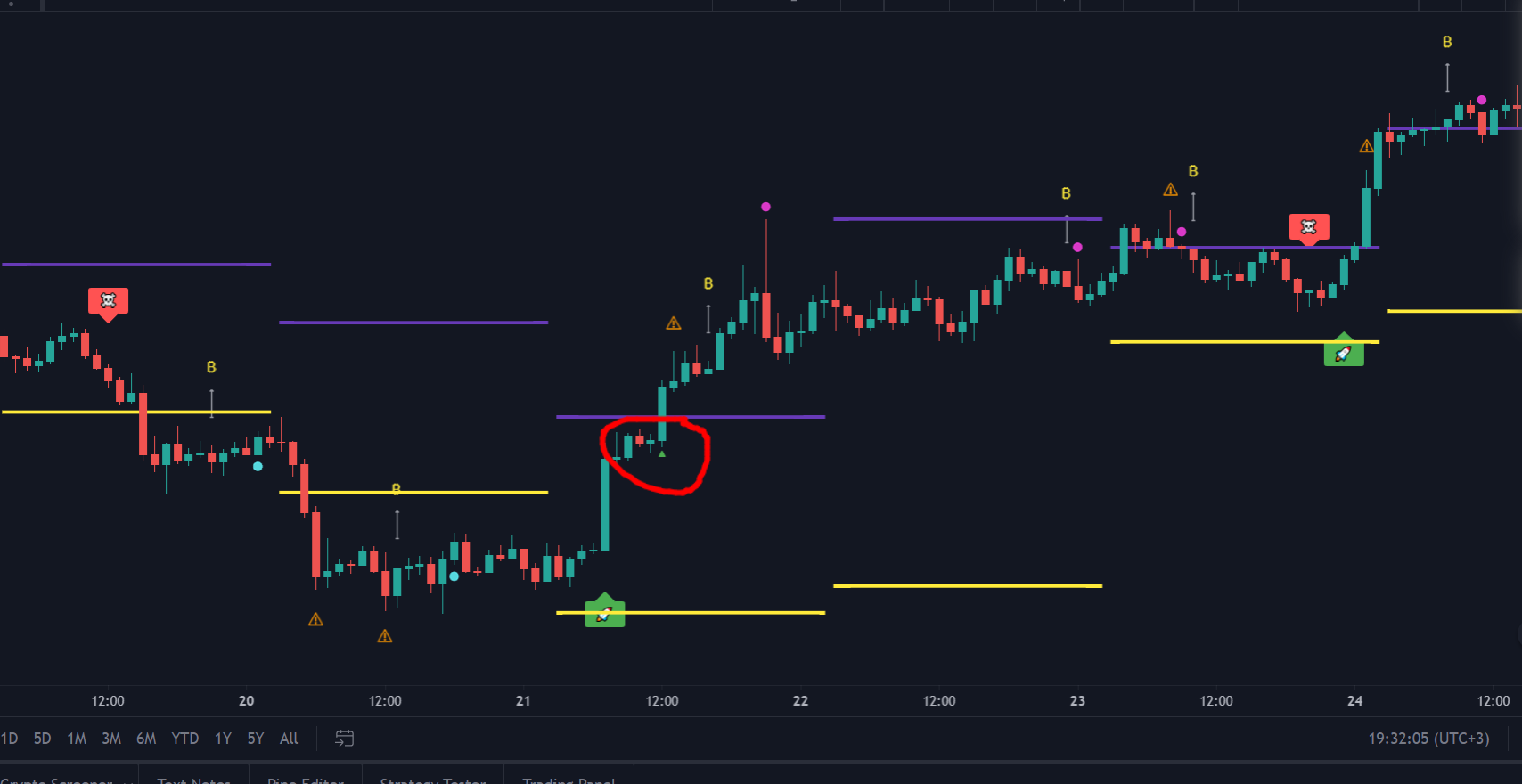
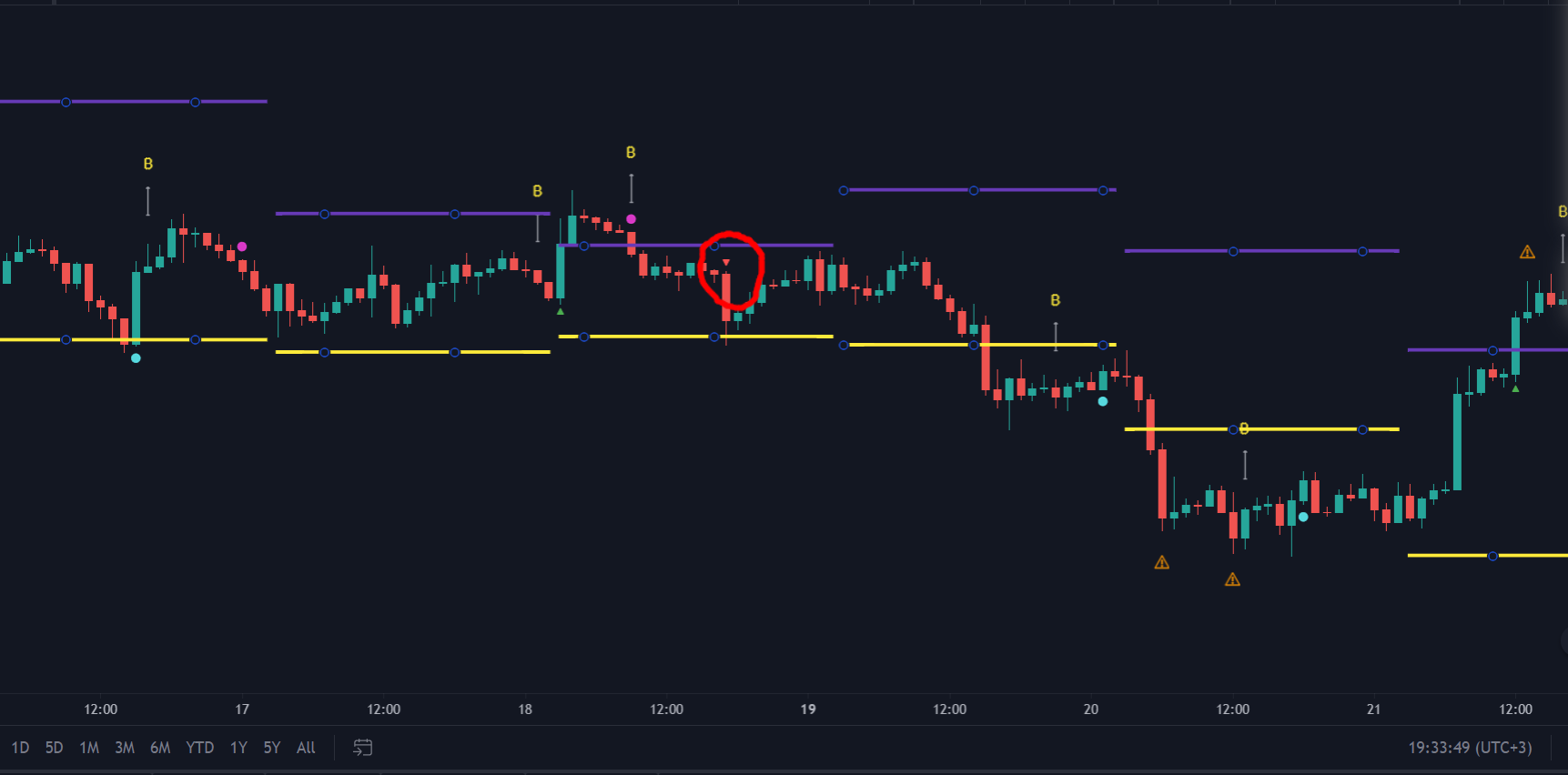
The High/Low Area Lines are very similar to support and resistance lines. They can be used together with other Oracle signal types to strengthen the confirmation of an uptrend or downtrend.
The first candle that reaches above the high area line after a confirmed downtrend will display a green triangle at its base. The first candle that reaches the low area line after a confirmed uptrend will display a rend triangle on the top side:
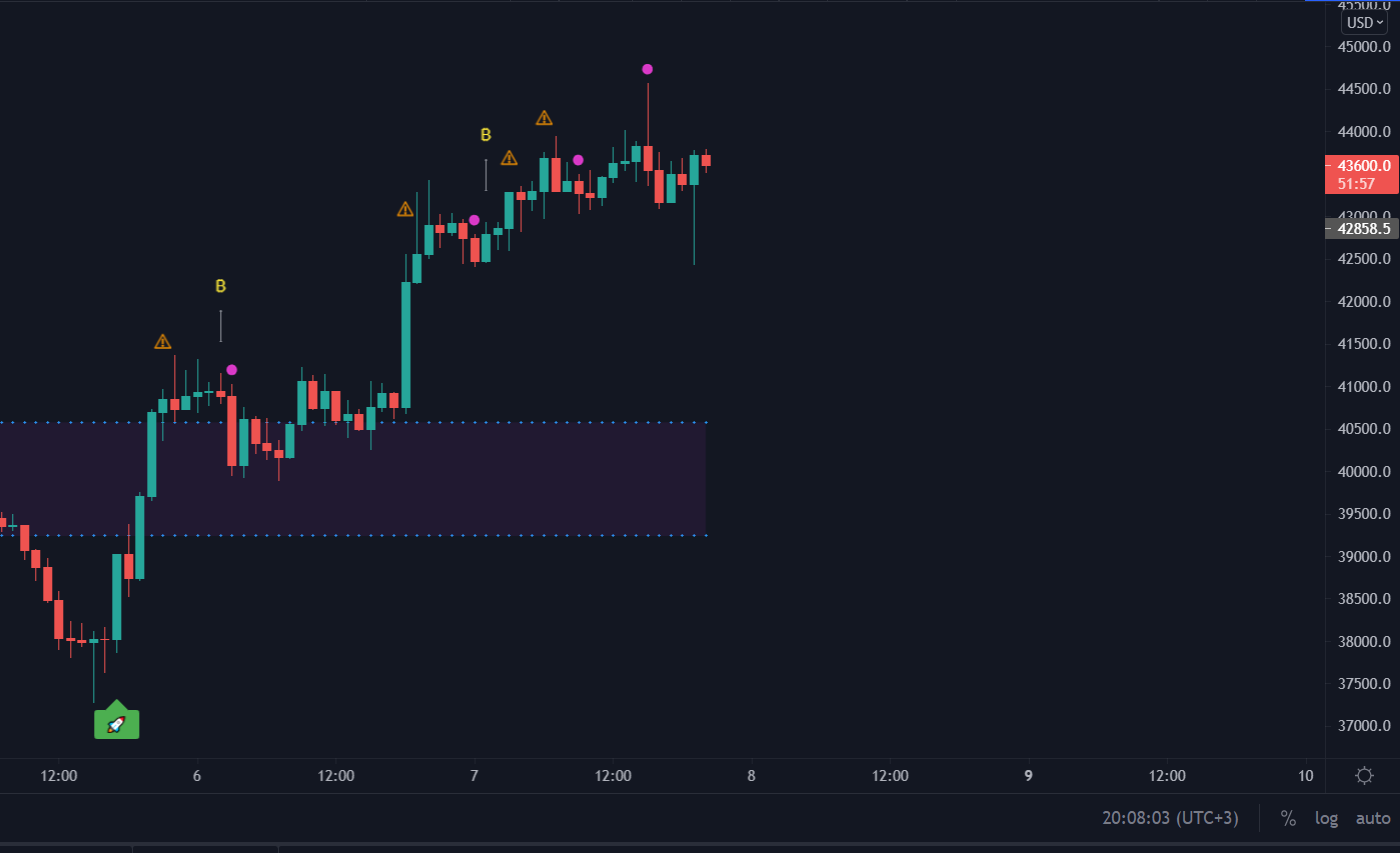
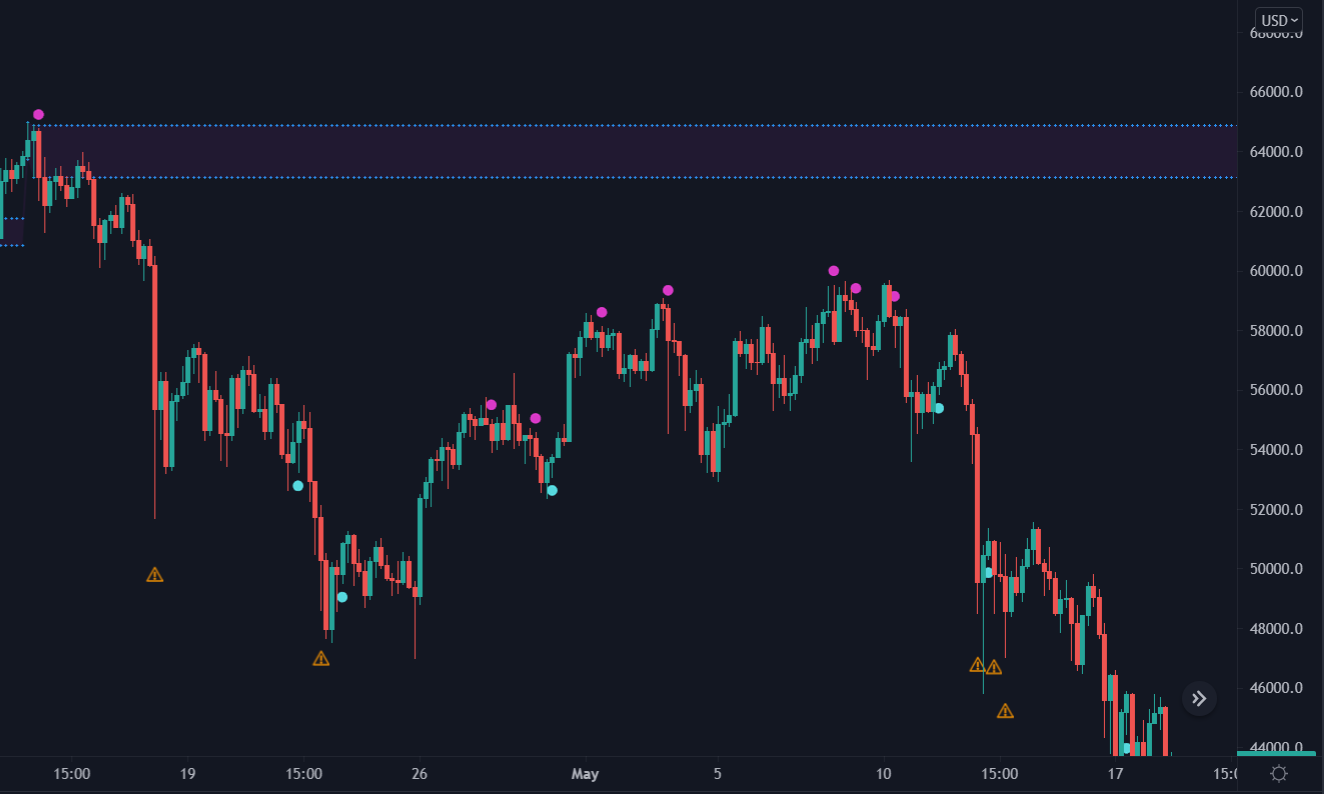
The Supply/Demand Areas overlay easily identifies areas on the chart where the trend is likely to reverse. It puts the odds in your favour and saves you from taking unnecessary risks.
Used together with the other signals chartered by Oracle, this overlay helps traders take the right decisions at the right time:
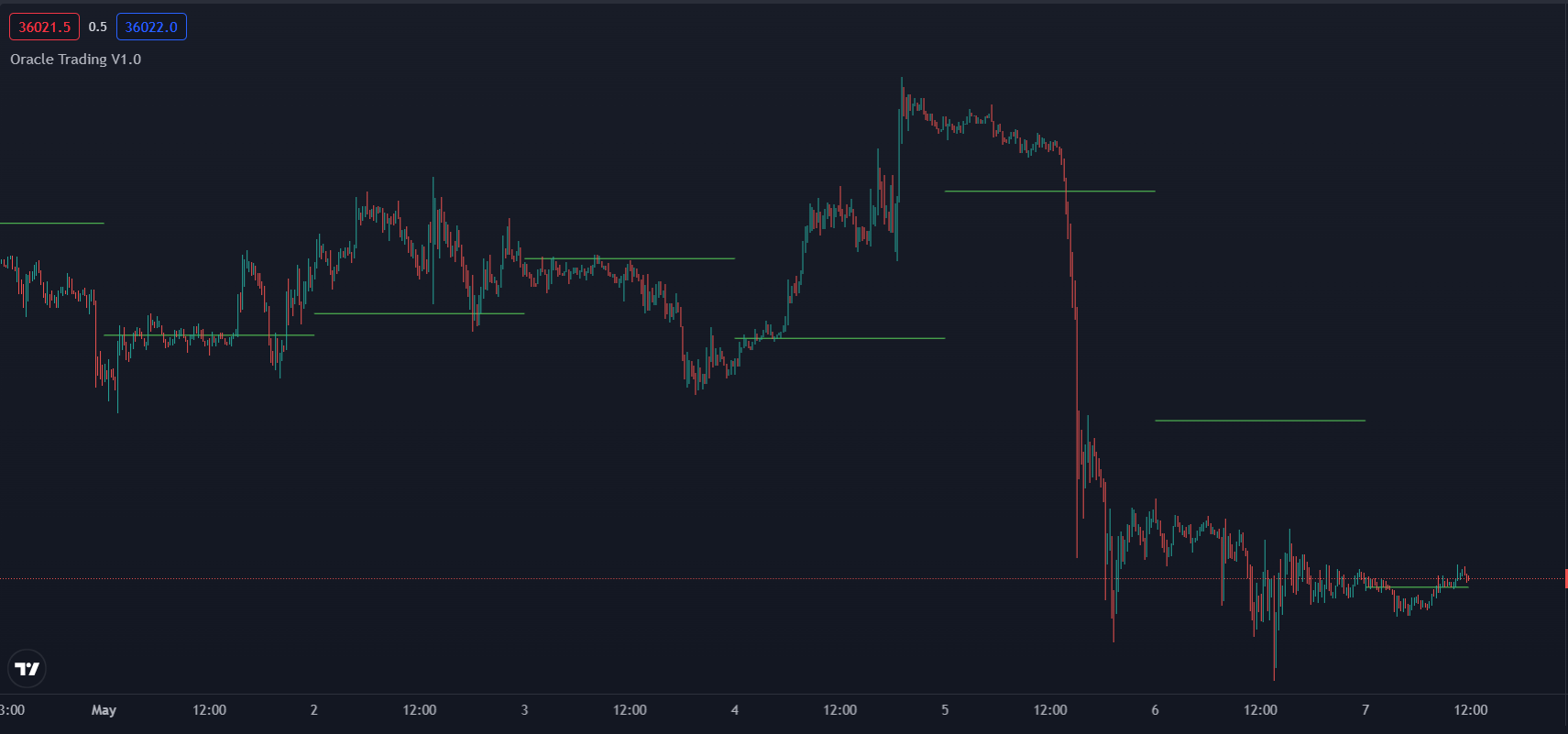
The Auto Pivots is a technical indicator used to determine levels at which price may face support or resistance. Oracle trading will display daily, weekly or monthly pivots depending on the timeframe of the chart:
Oracle Trading features 2 types of take profit displays: automated and manual. The automated take profit points are part of the Oracle Trading internal algorithm and automatically calculate best levels of TP based on the signal entry price, balance, risk and other important factors.
Manual TP levels can be defined by the user and represent percentage based profit targets. There are up to 3 TP levels that can be specified for each trade:
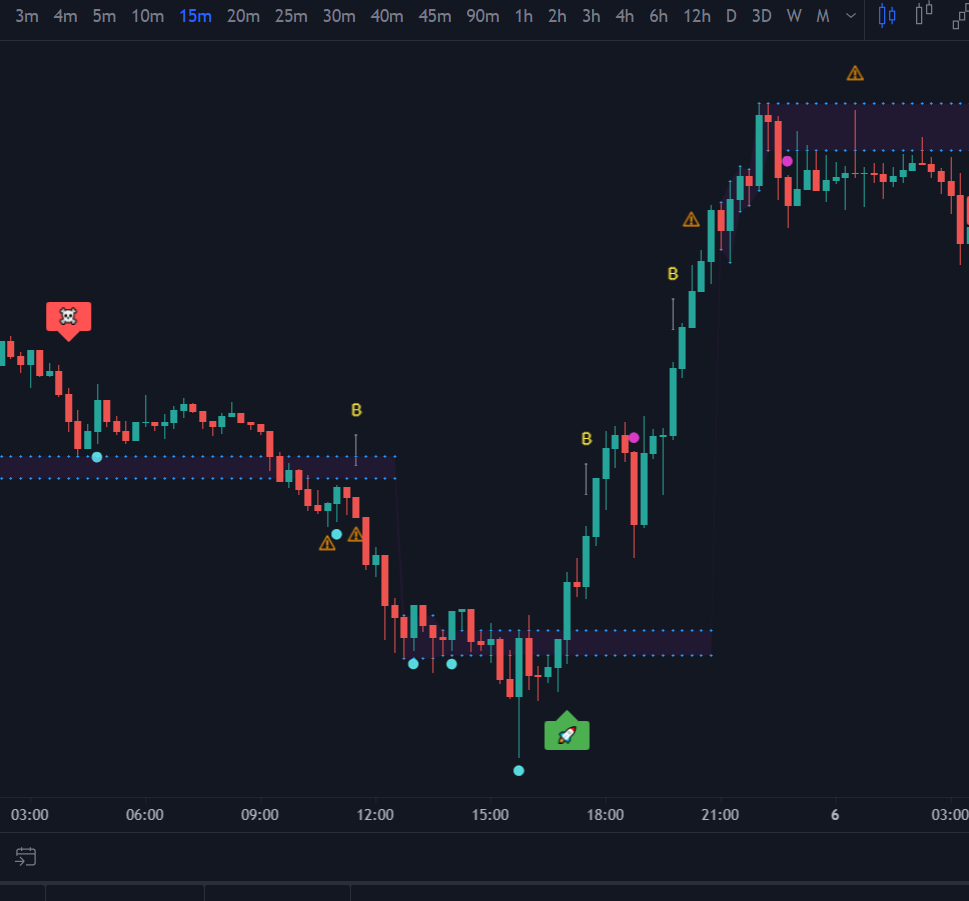
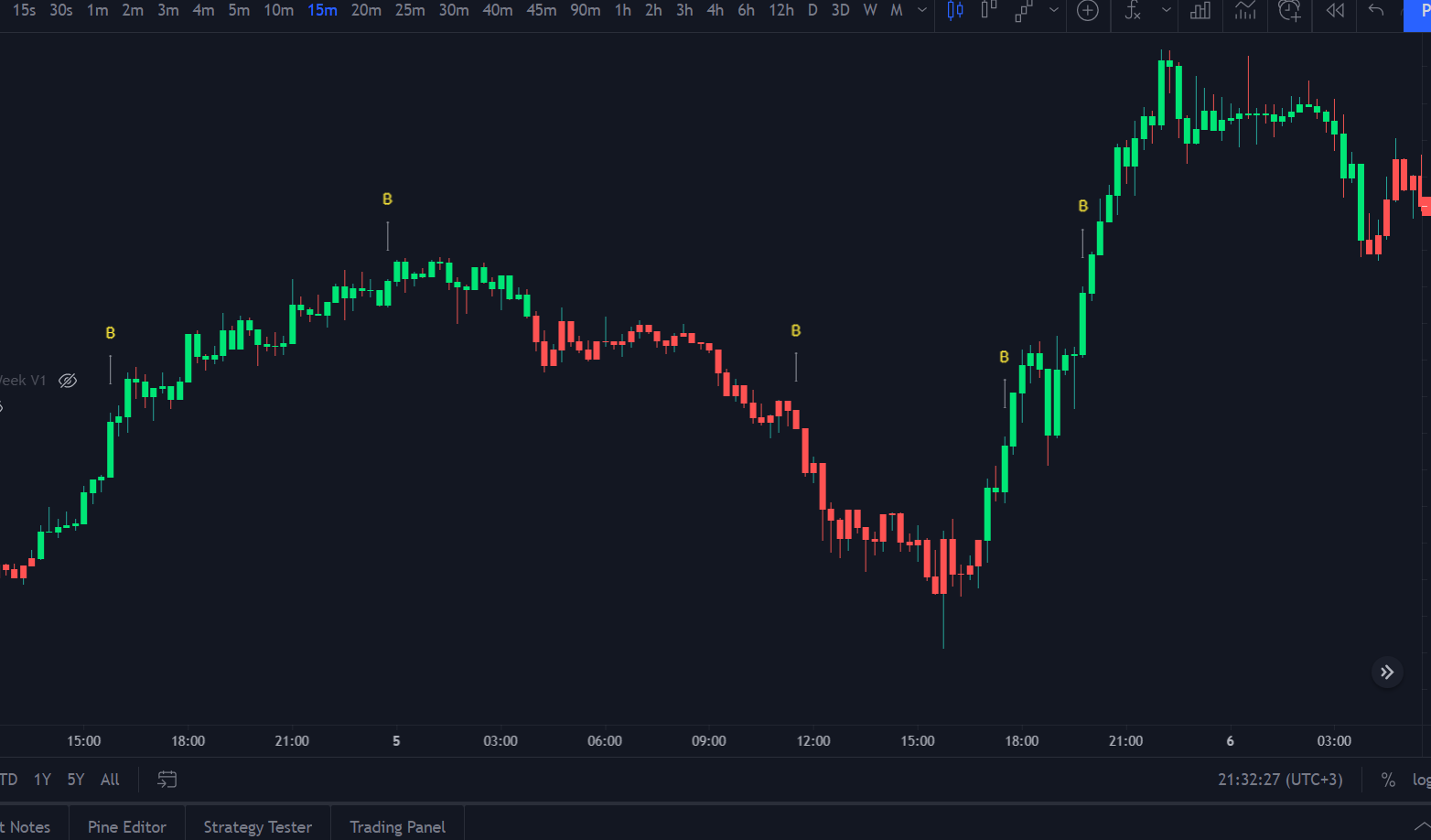
Oracle Trading features a price bar coloring option that helps users to better visualize the current direction of their trade/s. In order to use candle coloring in the most efficient way, make sure to disable the borders setting in your chart settings:
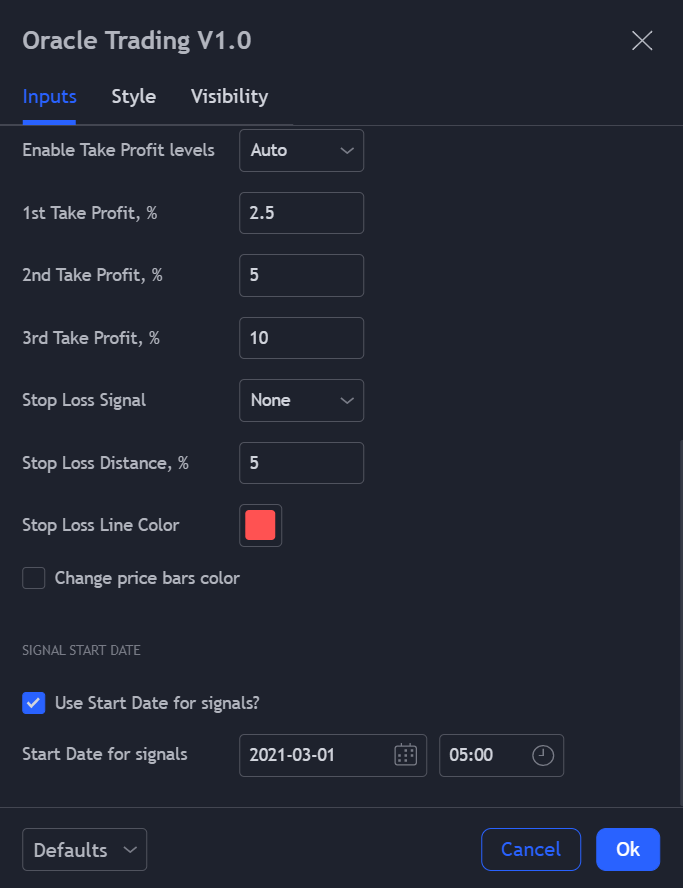
The signal start fields are used to specify what date on the chart that you want Oracle signals to appear. This is optional and it’s recommended to leave this section as default, unless you need signals to appear within a certain time period:
By default, TradingView will display indicator arguments and values next to the indicator titles. These appear in the form of long number strings and different setting values. As you may notice in the screenshot below it can be distracting and take up too much space on the chart:

If you’d like to remove them click the settings icon on your TradingView chart, and untick them as shown below: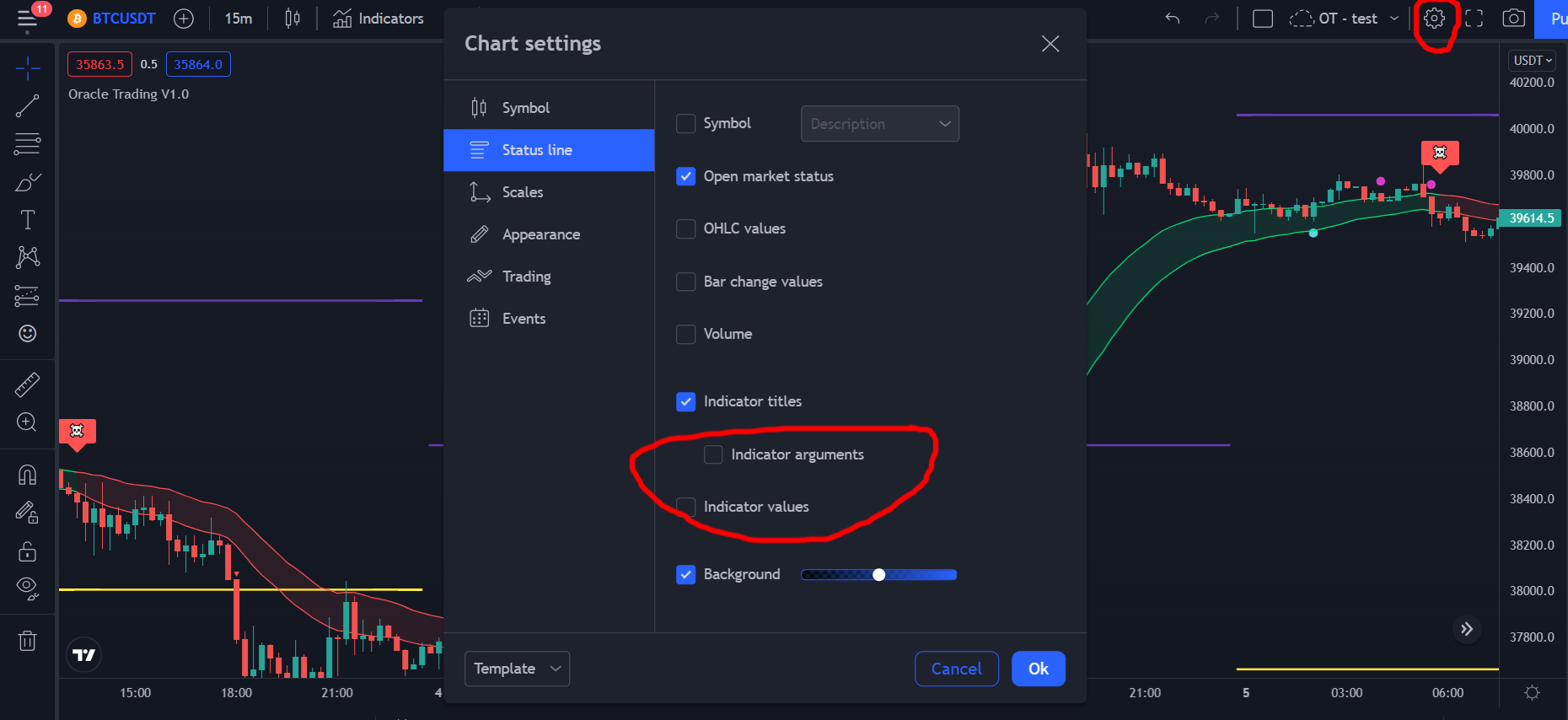
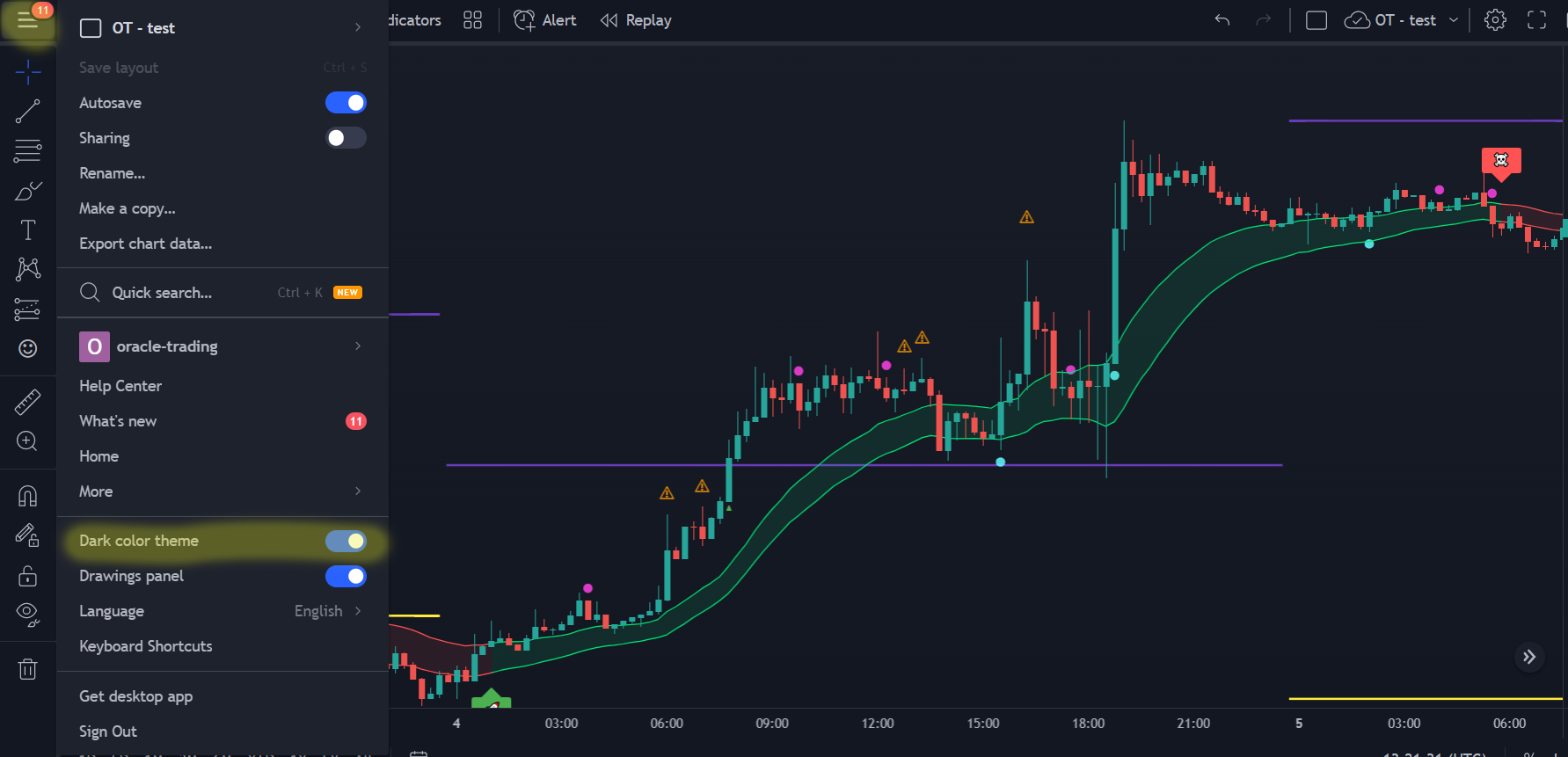
To activate dark mode, toggle the slider beside “Dark color theme” in the main drop-down menu. You can find this by clicking the button in the top left of your screen:
Even though Oracle Trading was designed with cryptocurrencies in mind, it can interpret any chart that’s accessible on tradingview.com, which includes but not limited to, cryptocurrency, stocks, traditional currencies, futures, bonds and precious metals.